
Introduction:
Device detection failures are rarely caused by hardware alone; most issues arise from communication protocol conflicts among the device, USB bridge, and Citra MMJ authorization layer.
Common connection blind spots
Many users assume a charging cable is a data cable. This is a primary blind spot. Additionally, Windows often “silently” updates drivers, replacing functional Android drivers with generic MTP (Media Transfer Protocol) drivers that do not support ADB commands.
Why do detection errors happen unexpectedly?
A connection that worked the previous day could fail today due to a revoked RSA Key. For security, Meta Quest headsets periodically refresh their trust settings. If you don’t re-approve the connection prompt inside the headset, Citra MMJ will be locked out of the device’s file system.
What Causes “Device Not Found” in Citra MMJ
Understanding the root cause is essential for applying the correct fix. Most detection issues stem from one of the following four pillars:
- Developer Mode Not Active or Revoked: Without Developer Mode, the headset refuses to open the “Debugging Port” required for Citra MMJ to function.
- Missing ADB Authorization: The “Allow USB Debugging?” prompt must be manually accepted inside the headset lens.
- Faulty USB Chain or Disconnection: Poor-quality cables or overloaded USB hubs can cause “Intermittent Data Drops.”
- Windows Driver Mismatch: If Windows identifies the headset as a “Portable Media Player” instead of an “Oculus ADB Interface,” the connection will fail.
Confirming Developer Mode Status on the Headset
Developer Mode is the “Master Key” for Citra MMJ. If this is off, no amount of driver reinstallation will fix the problem.
How to verify developer mode is ON.
Check your Meta Quest mobile app on your smartphone. Navigate to Devices > Headset Settings > Developer Mode. Ensure the toggle is Active. Even if it looks active, toggling it OFF and back ON can sometimes force a “State Refresh” that fixes stuck configurations.
Reauthorizing permissions
If you have recently updated your headset firmware, your Organization Status might need to be re-verified on the Meta Dashboard. If your organization is “Unverified,” Meta may silently disable developer features on your hardware.
Fixing headset prompts not appearing
If the “Allow USB Debugging” prompt doesn’t appear, go to Settings > System > Developer inside the headset and look for “Reset USB Dialogs.” This forces the headset to ask for permission again the next time you plug it into your PC.
Testing ADB Connectivity for Proper Detection
Citra MMJ is just the “Face” of the operation; ADB (Android Debug Bridge) is the engine. You must verify the engine is running before blaming the app.
Checking if ADB sees the device
Open a Command Prompt (CMD) on your Windows PC and type: adb devices. If you see a serial number followed by “device,” you are ready. If it says “unauthorized,” you need to look inside the headset. If the list is empty, the driver or cable is at fault.
Running basic commands to validate the connection
Try running adb shell getprop ro.product.model. If the command returns your device model (e.g., Quest 3), the Logic Link is working correctly, and any remaining issues are likely due to settings in the Citra MMJ app.
Removing stale authorization keys
Sometimes the PC stores a “Corrupted RSA Key.” In your PC’s user folder (e.g., C:\Users\Name\.android), delete the files adbkey and adbkey.pub. Restart the ADB server, and the headset will be forced to generate a fresh, clean security handshake.
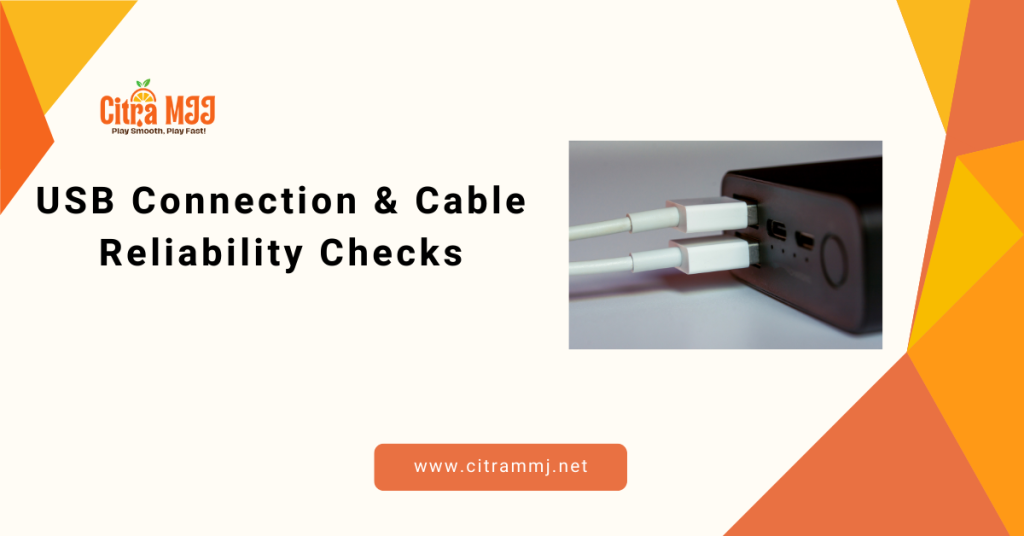
USB Connection & Cable Reliability Checks
Not all USB-C cables are created equal. A “Charge Only” cable lacks the Data Pins required for ADB communication.
Verifying cable data capability
Use the Hardware Not Detected cable that came with the headset or a high-quality “Link Cable.” Avoid cheap phone charging cables, as they often have high Signal Latency.
Switching USB ports safely
Always use USB 3.0 or 3.1 ports (usually blue or red). Avoid using front-panel case ports, as they are often connected via long, unshielded internal wires that can cause data interference. Plug directly into the motherboard at the back of the PC.
Using uninterrupted power sources
If you are using a laptop, ensure it is plugged into a wall outlet. Many laptops have “Power Throttle” USB ports when on battery, which can kill the ADB connection mid-task.
Driver Validation & Repair Procedures
Windows often misidentifies Android-based headsets. You must manually point Windows to the correct Oculus ADB Interface.
Fixing Android/Meta drivers
Open Device Manager. Look for “Oculus Device” or “Other Devices.” If you see a yellow triangle, right-click it, select Update Driver > Browse my computer > Allow me pick from a list. Select “Oculus ADB Interface.” This manually overrides Windows’ generic driver.
Removing corrupted installs
If you have multiple versions of “Oculus ADB Drivers” or “Samsung Android Drivers” installed, they may conflict with each other. Use the “Uninstall Device” option in Device Manager, and check the “Delete the driver software for this device” box before performing a fresh install.
Reinstalling fastboot ADB packages
Ensure your “Platform Tools” folder is up to date. Google commonly updates ADB to support newer versions of Android/vOS. Using a 3-year-old ADB version with a brand-new Quest 3 will result in Communication Protocol Conflicts.
Windows Security & Blocking Interference
Your PC’s security layers might be “Too Protective,” treating Citra MMJ’s data packets as a potential threat.
- Antivirus flagging ADB layers: Sophisticated antivirus programs (like Bitdefender or Kaspersky) often block “Unauthorized USB Debugging.” Add the adb.exe and Citra MMJ.exe to your Exclusion List.
- Firewall permission conflicts: When you first run Citra MMJ, Windows asks for permission to access the Private/Public network. If you clicked “Cancel,” the app might be blocked from communicating with the ADB server. Reset your Windows Firewall Rules for the app.
- Admin vs non-admin execution: Always run Citra MMJ as an Administrator. This gives the software the “Elevated Permissions” needed to control system-level USB drivers.
Advanced Citra MMJ Device Detection Fixes
Resetting USB controllers
If your PC has been running for days, the USB Host Controller might be in a “Hung” state. In Device Manager, find “Universal Serial Bus controllers,” right-click the “USB Root Hub,” and select Disable, then Enable. This “Power Cycles” the port without a complete PC reboot.
Updating platform tools
Download the latest SDK Platform-Tools for Windows from the Android Developer website. Replace the adb.exe file in your Citra MMJ device’s “not found” folder with the newest version. This ensures 100% compatibility with the latest headset firmware.
Refreshing headset trust settings
Inside the headset, go to Settings > System > Developer, then toggle “USB Connection Dialog” on and off. This often “Nudges” the headset to recognize the PC if the connection has gone stale.
Frequently Asked Questions
Why does Citra MMJ say “device not found”?
This is usually due to Developer Mode being disabled, a “Charge-Only” USB cable, or the ADB Driver not being correctly assigned in the Windows Device Manager.
Can developer mode turn off automatically?
Yes. If you haven’t used the headset for a while or if your Meta “Developer Organization” needs re-verification, Meta may automatically toggle Developer Mode to OFF for security reasons.
How do I check if ADB sees my device?
Open a Command Prompt and run the adb devices command. If your device serial number appears with the word “device” next to it, the connection is successful.
Does the USB cable type affect detection?
Absolutely. You must use a Data Sync Cable. Many thin charging cables have only power wires and lack the data wires needed for the PC to “talk” to the headset.
Why do drivers keep breaking on Windows?
Windows Update often tries to “Help” by installing a generic “MTP” driver over your specific “ADB” driver. You may need to manually roll back the driver in Device Manager after a major Windows update.
How do I fix missing ADB authorization keys?
Delete the .android folder in your PC’s User directory, restart the ADB server, then check your headset for the “Allow USB Debugging” prompt.
Should I switch ports or reinstall drivers first?
Always Switch Ports and Cables first. Hardware issues are more common and easier to test than driver corruption.
Can an antivirus stop Citra MMJ from detecting devices?
Yes. Some antivirus software blocks the ADB Port (5037) by default. Adding an exception for Citra MMJ and ADB is often necessary.
Conclusion
Maintaining a reliable connection between Citra MMJ and your device requires clean logkeeping, clearing the Developer, manually assigning your ADB Drivers, and ensuring your USB Chain is high-quality. You eliminate the variables that cause detection errors.
Proper setup guarantees steady device detection as a layered stack:
Keep your drivers updated, your cables certified, and your headset permissions refreshed. With these professional-grade tuning steps, your Citra MMJ sessions will be free of “Device Not Found” interruptions, enabling you to concentrate on and manage.
Latest Post:
- Citra MMJ “Device Not Found” Error: How to Fix Detection Issues
- Citra MMJ Device Recognized but App Fails to Load? Causes & Fixes
- Apps Stuck During Installation in Citra MMJ: Causes & Fix Guide
- Citra MMJ Installation Successful but App Not Visible? Fix It Fast
- Fix Corrupted App Installs in Citra MMJ
